Maths4u
How to Use FirstMaths
FirstMaths is an interactive math learning program for young children.
This page shows how to start a lesson in a few simple steps.
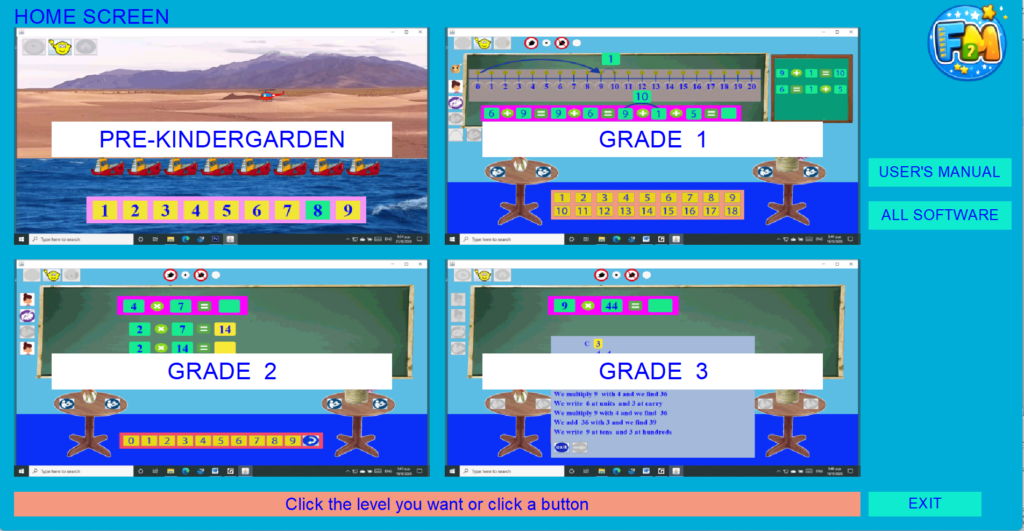
Step 1 — Choose a Grade:
Choose the grade level you want to practice.
Pre-Kindergarten
Grade 1
Grade 2
Grade 3
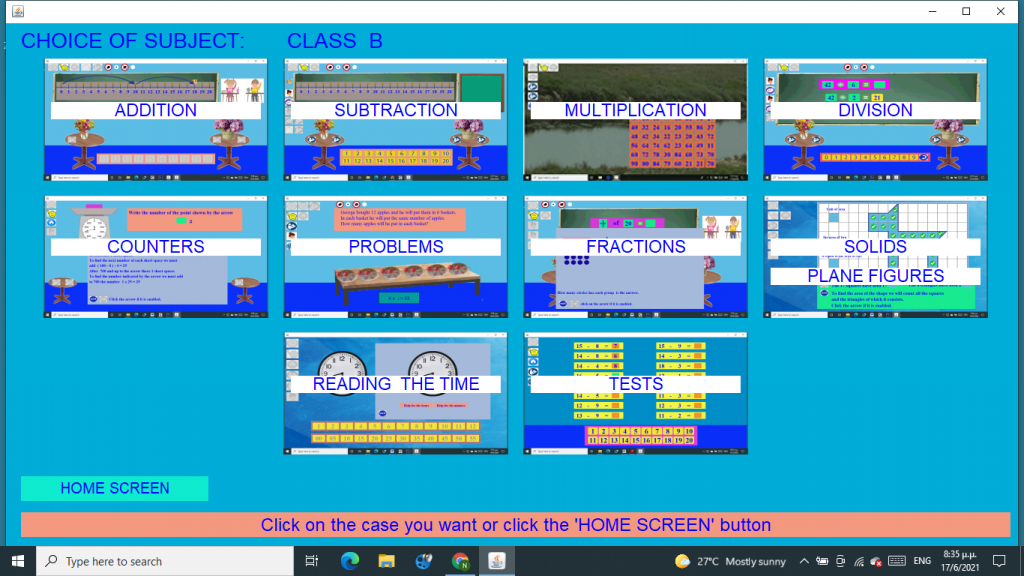
Step 2 — Choose A Subject:
For example:
Addition
Subtraction
Multiplication
Division
and more.
Step 3 — Choose A Lesson
Each subject contains several lessons.
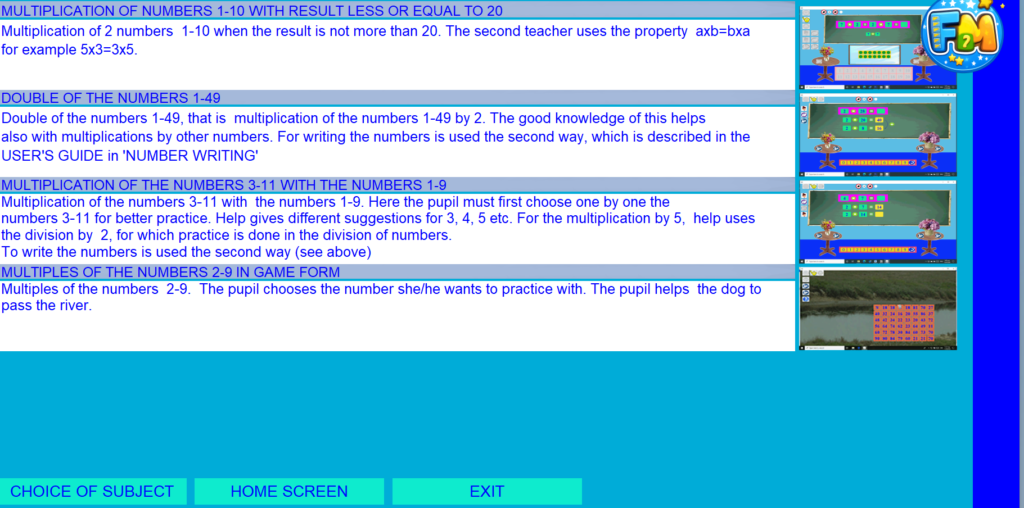
For example, in Multiplication you can choose lessons such as:
• Multiplication of Numbers 1–10 with Result ≤ 20
• Double of the Numbers 1–49
• Multiplication of the Numbers 3–11 with the Numbers 1–9
• Multiples of the Numbers 2–9 in Game Form
Click the lesson you want to practice.
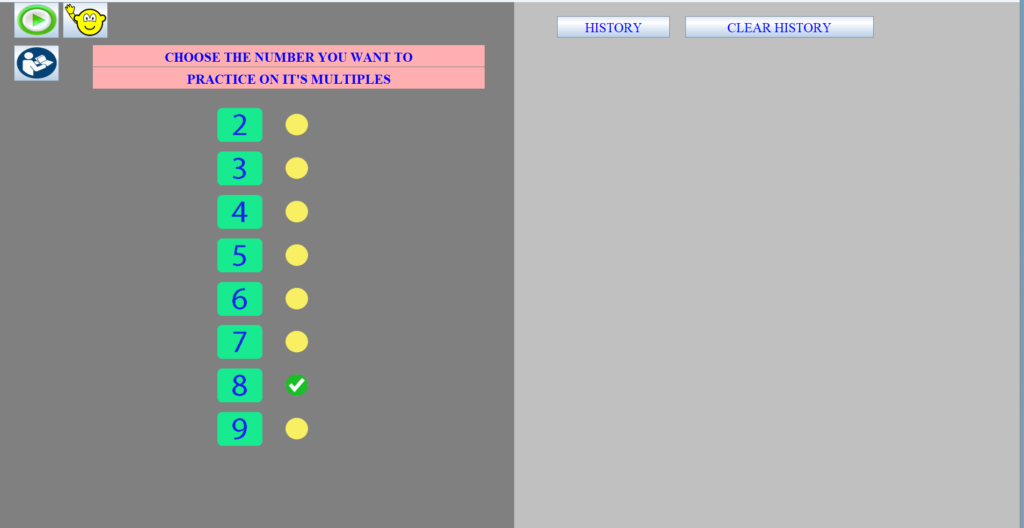
Step 4 — Lesson Options
Before starting the exercise with the green play button, you may select from the available lesson options, if any. This screen also includes the following controls:
History: View your previous answers and overall performance.
Clear History: Reset and remove all past results.
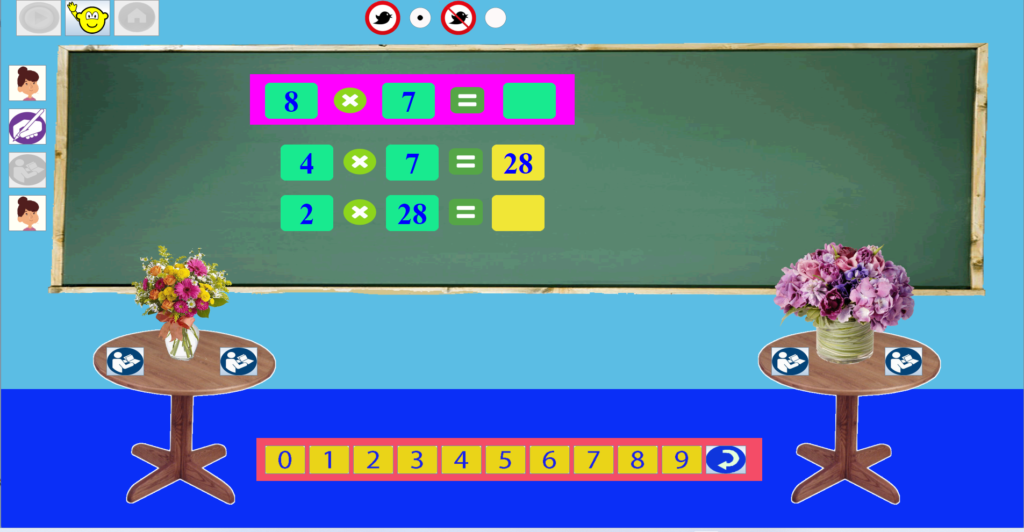
Step 5 — Solve The Exercise
Press Play, if it is enabled, to start a new exercise.
If students need help, they can click on the teacher icon to receive guidance
Students enter their answers using an on-screen keyboard.
Click the Instructions icon to see how to use this keyboard.
Some exercises use a different keyboard.
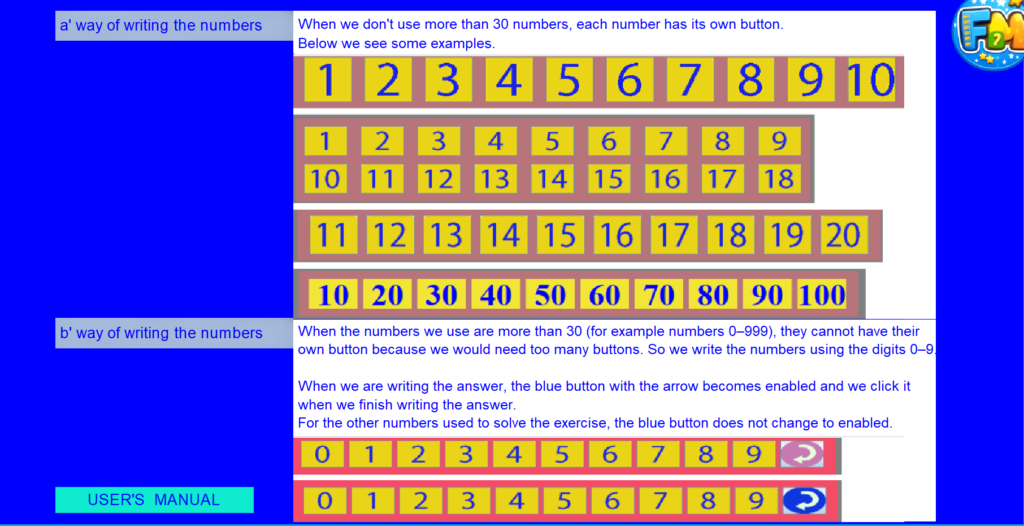
When the numbers are not more than 30, students can simply click on the correct number.
In USER’S MANUAL there is this page which explains the two ways for writing the numbers
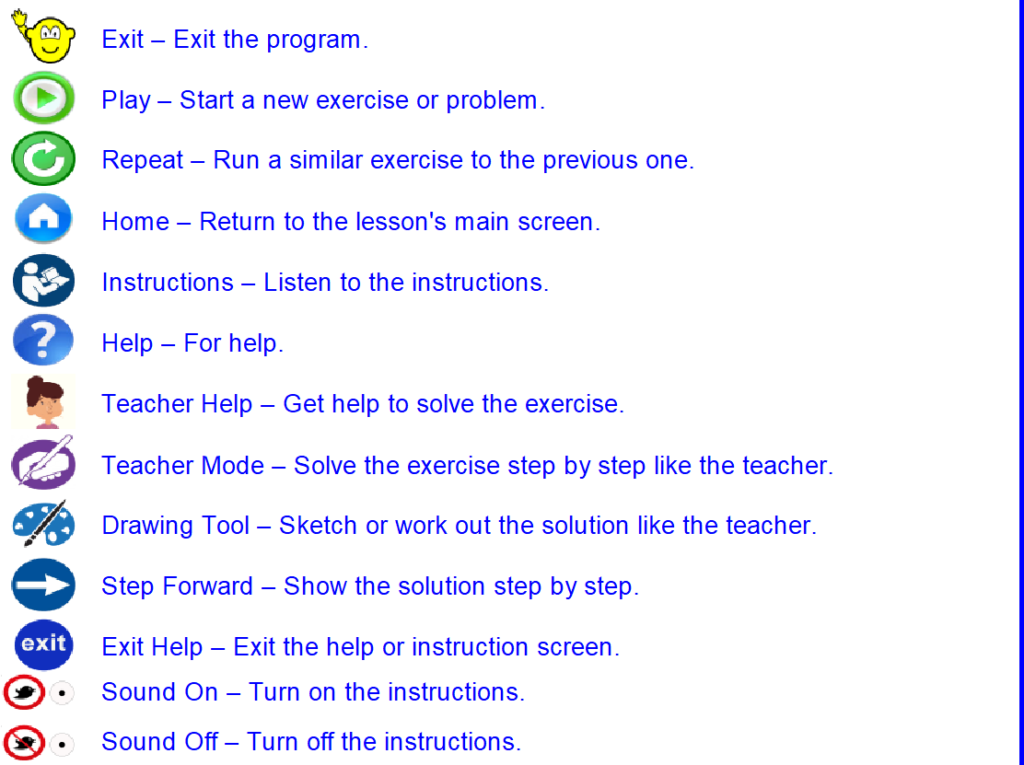
These are the icons used in the software and their action